Connect GitHub and deploy a website
Grant repository access, review build configuration and verify the resulting release.
Applies toFor site GitHub deployments. Builder availability depends on the resource node.
On this page
Before you start
- Prepare an authorised repository and branch. Back up the target website and confirm which site will receive the release.
- Identify the entry point, build command, output directory and environment settings. Browser configuration and server secrets are not interchangeable.
Follow these steps
- After activating shared hosting, find its website in NewCP and choose Manage → Deployments. Connect GitHub, authorise the required repository and select the account, repository and branch.
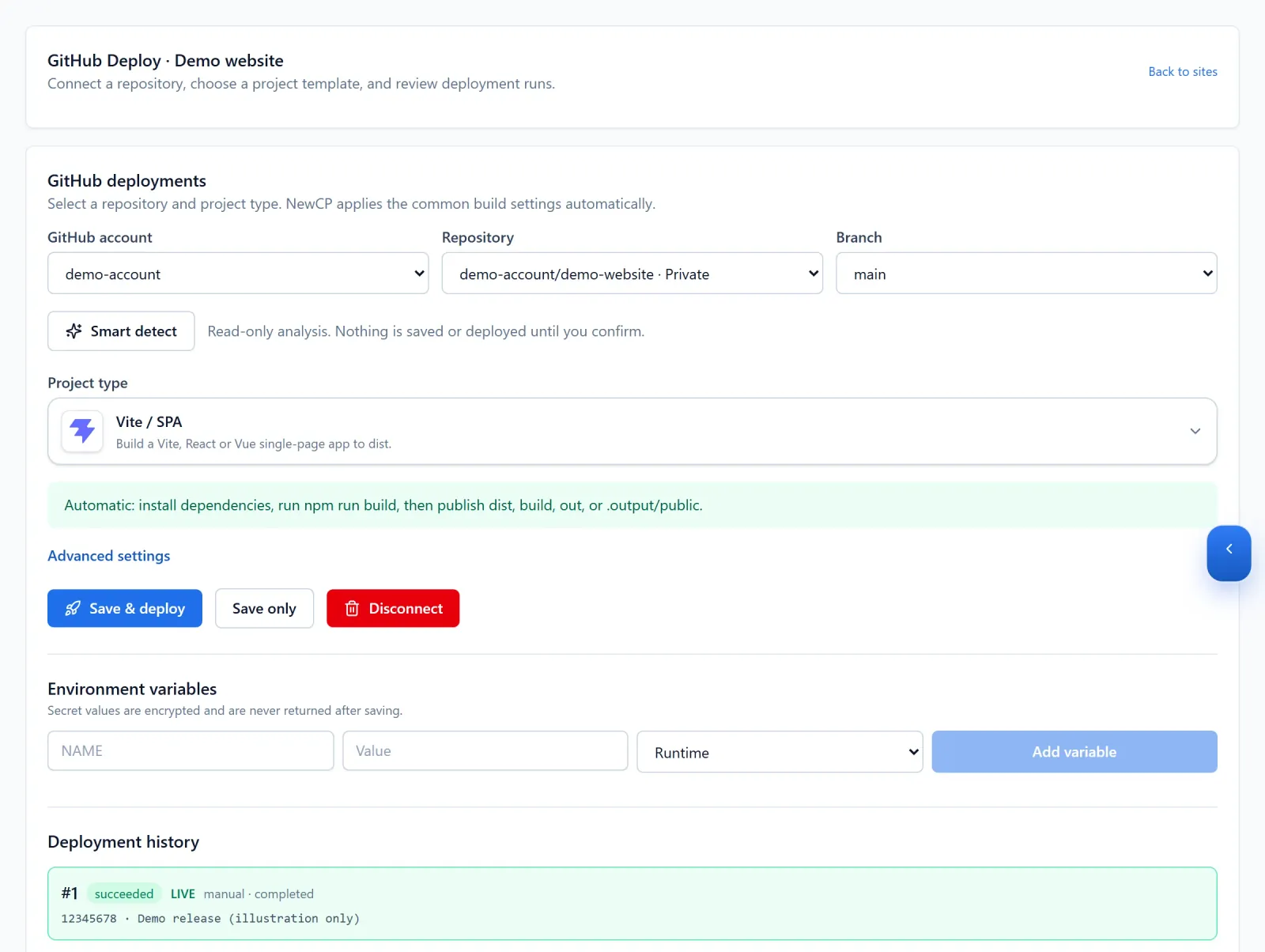
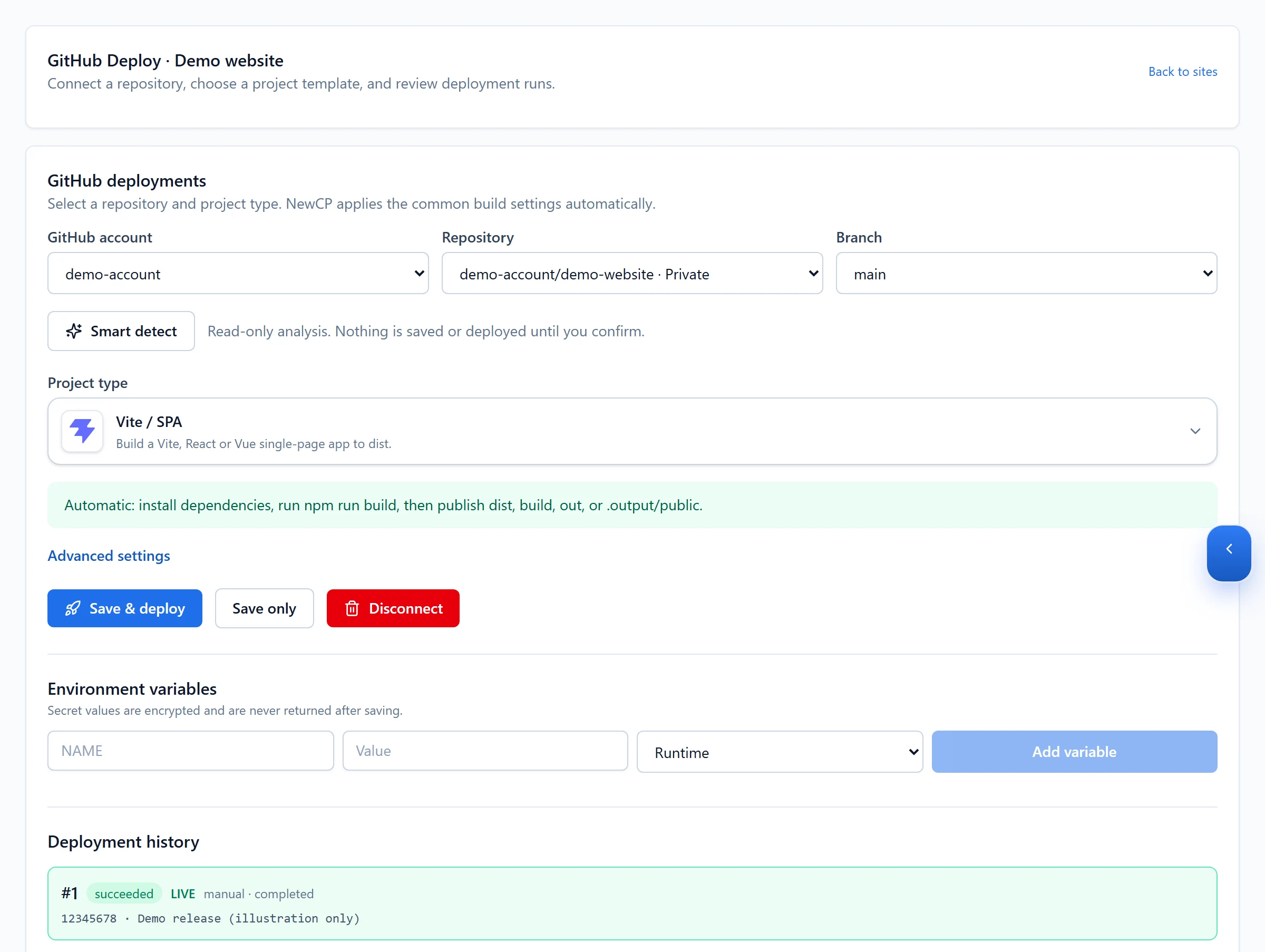
Figure 1: In Manage → Deployments, identify the repository and branch. The Vite template and displayed run are illustrative demo data. View full-size image - Choose a template or use Smart detect, then review the proposed configuration before applying it. Detection is not a guarantee for every project.
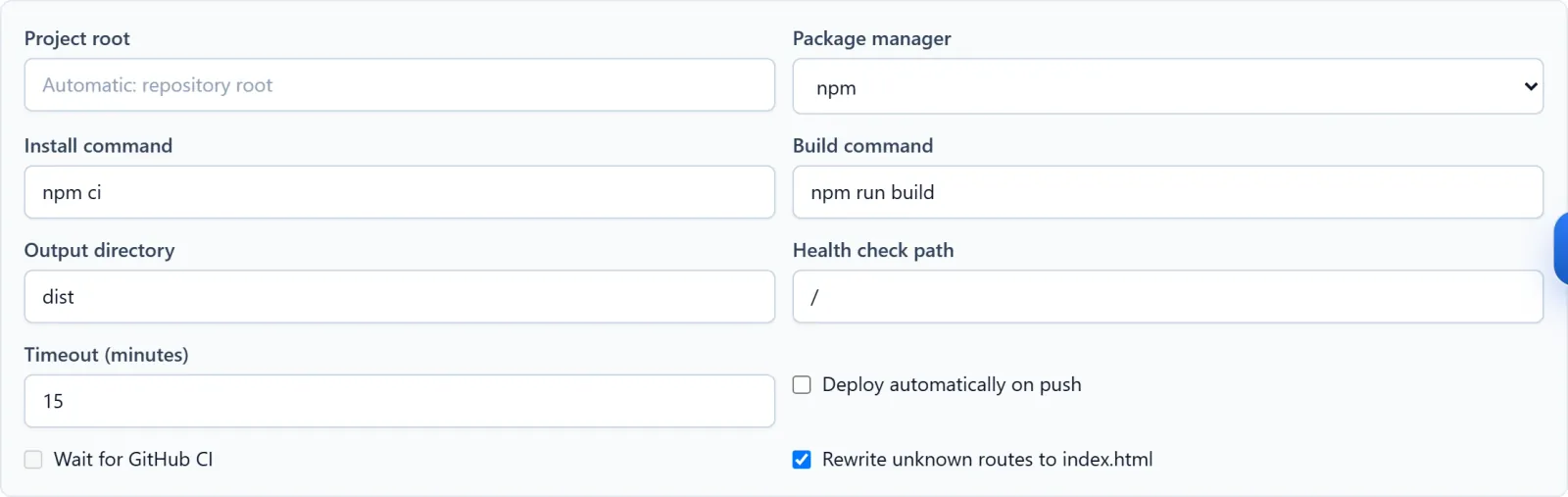
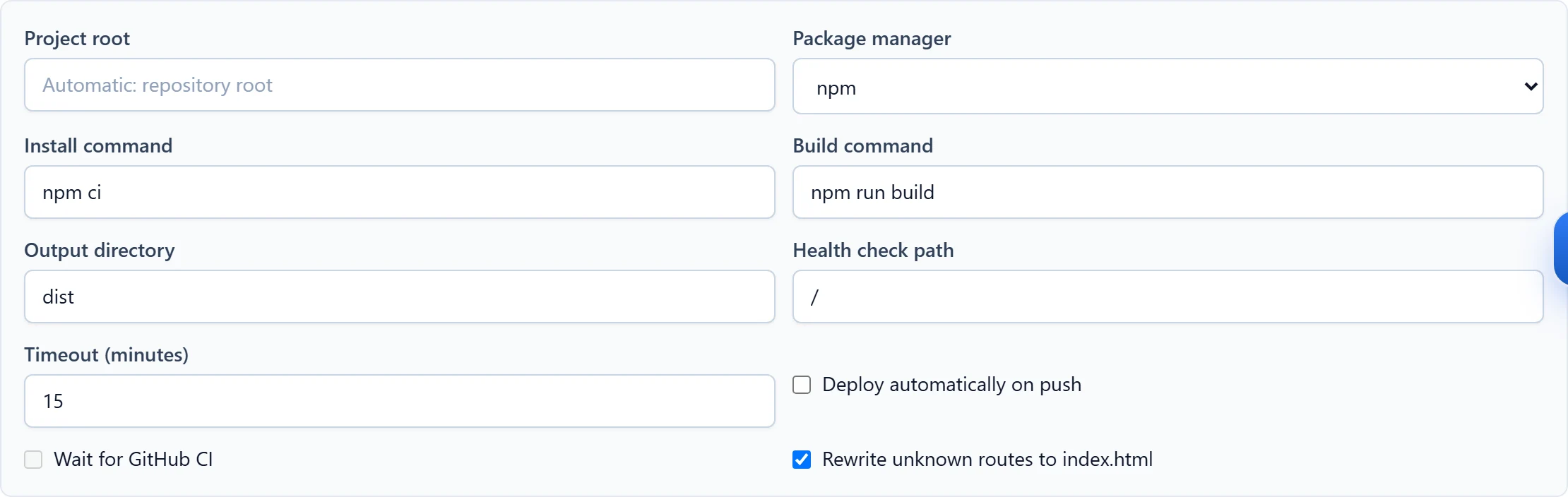
Figure 2: Review the detected or selected build settings, output directory and automatic-deployment choice. This is a demo static-build configuration, not a universal preset. View full-size image - Save configuration, add build or runtime variables and deploy. Explicitly enable automatic deployment only when the selected branch is intended for it.
Check the result
- Review the run state and stage logs, then test the public entry point, assets and a meaningful application action.

Figure 3: Open a deployment run to inspect its stage logs. These messages are simulated demo output, not evidence of a real deployment. View full-size image

If something goes wrong
- Determine whether failure occurred during checkout, dependency installation, build, startup or health checking before retrying.
- Keep secrets out of logs. Before rollback, review the available release and data compatibility; reverting code does not reverse database changes.