连接 Windows 或 Linux VPS
在客户中心查看交付信息,按系统使用 RDP 或 SSH 连接。
适用范围适用于已开通 VPS。共享主机的 FTP 和网站面板不是 VPS 系统登录入口。
本页目录
开始前准备
- 在客户中心 VPS 页面选中正确服务,确认状态与系统类型。准备可信设备和合适的远程客户端。
- 使用服务页面提供的地址、端口、用户名和凭据;不要将截图中的密码公开。
操作步骤
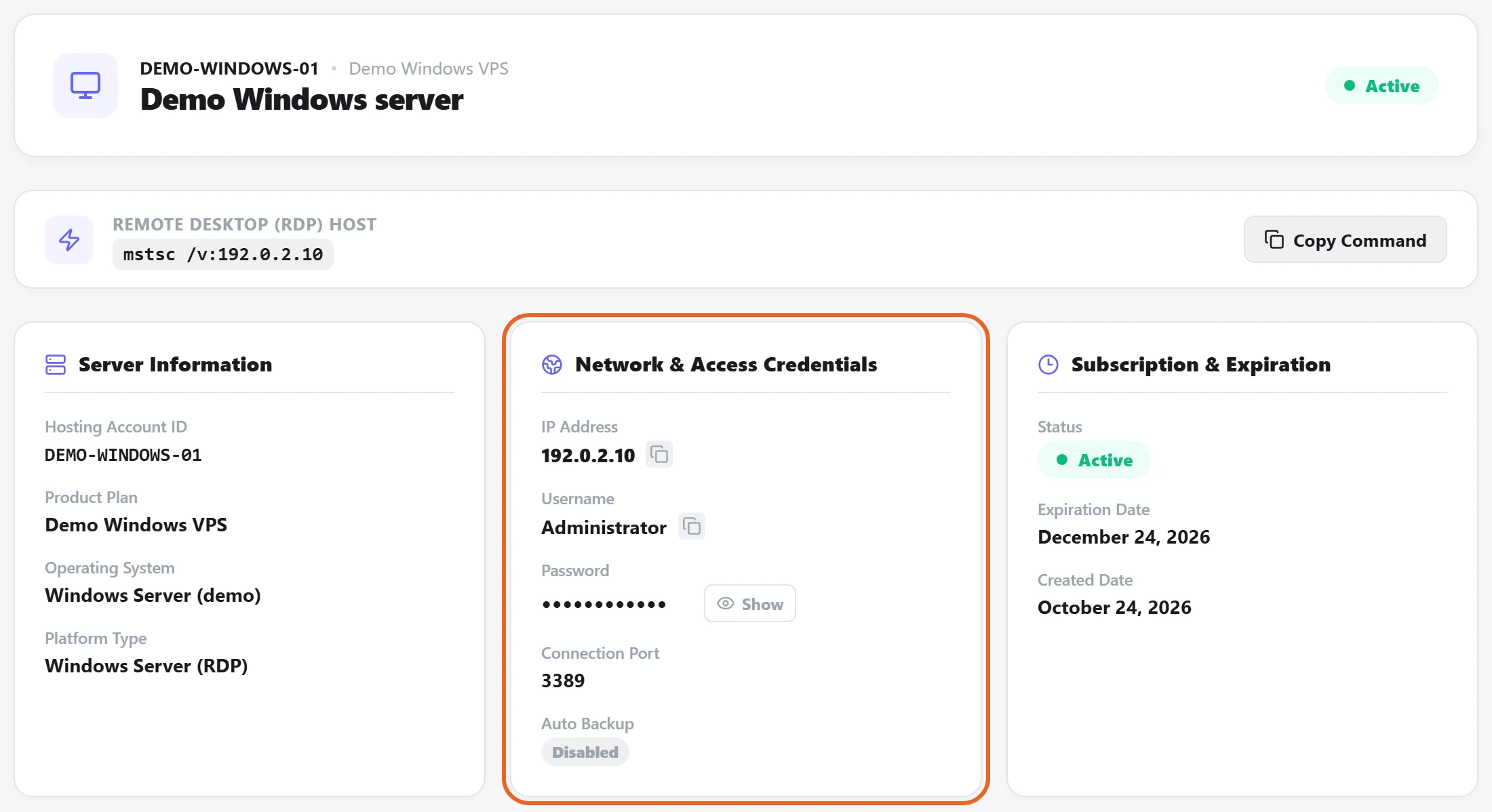
- Windows VPS 使用远程桌面客户端,填写服务显示的 RDP 地址和登录身份。
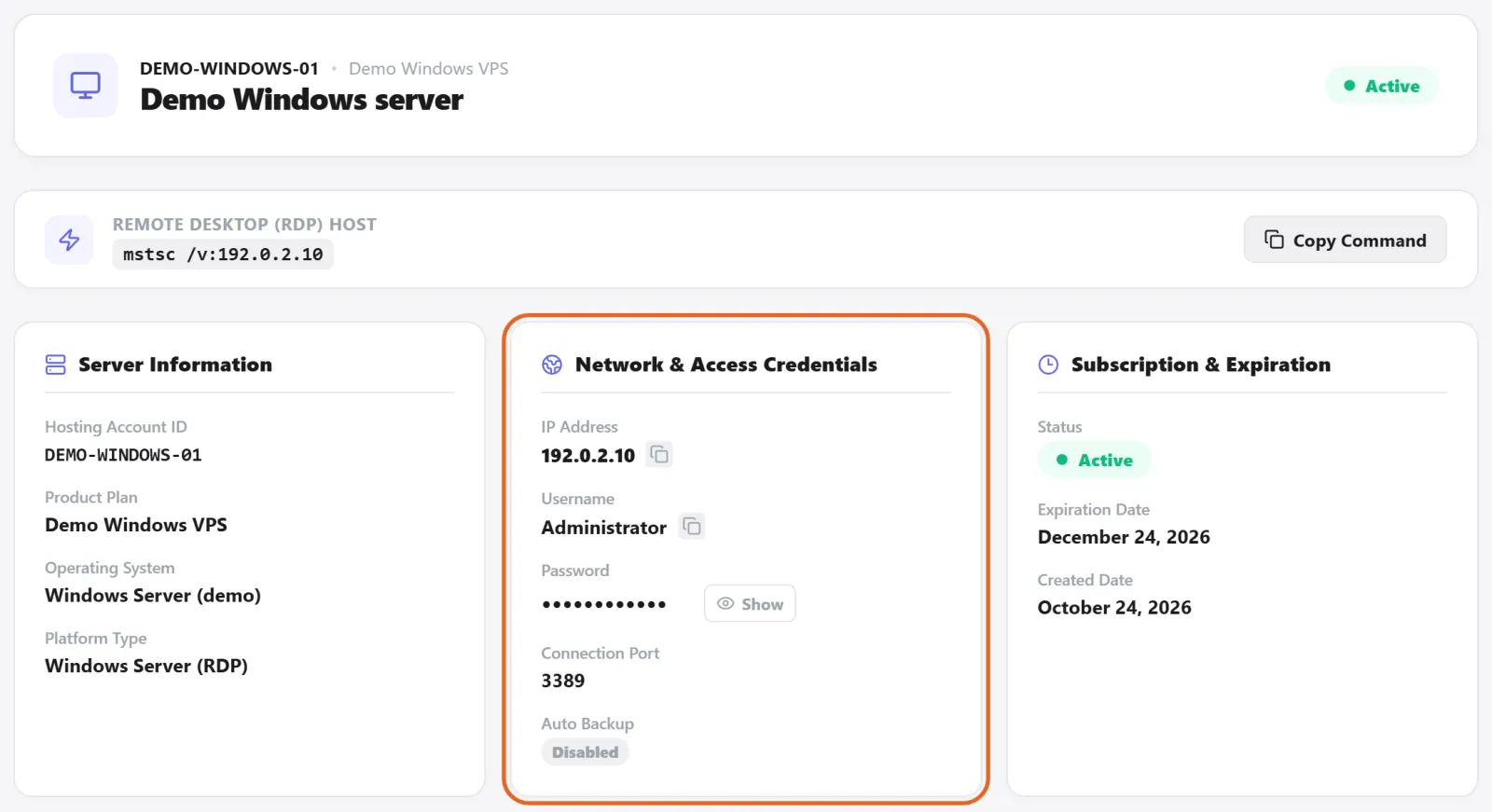
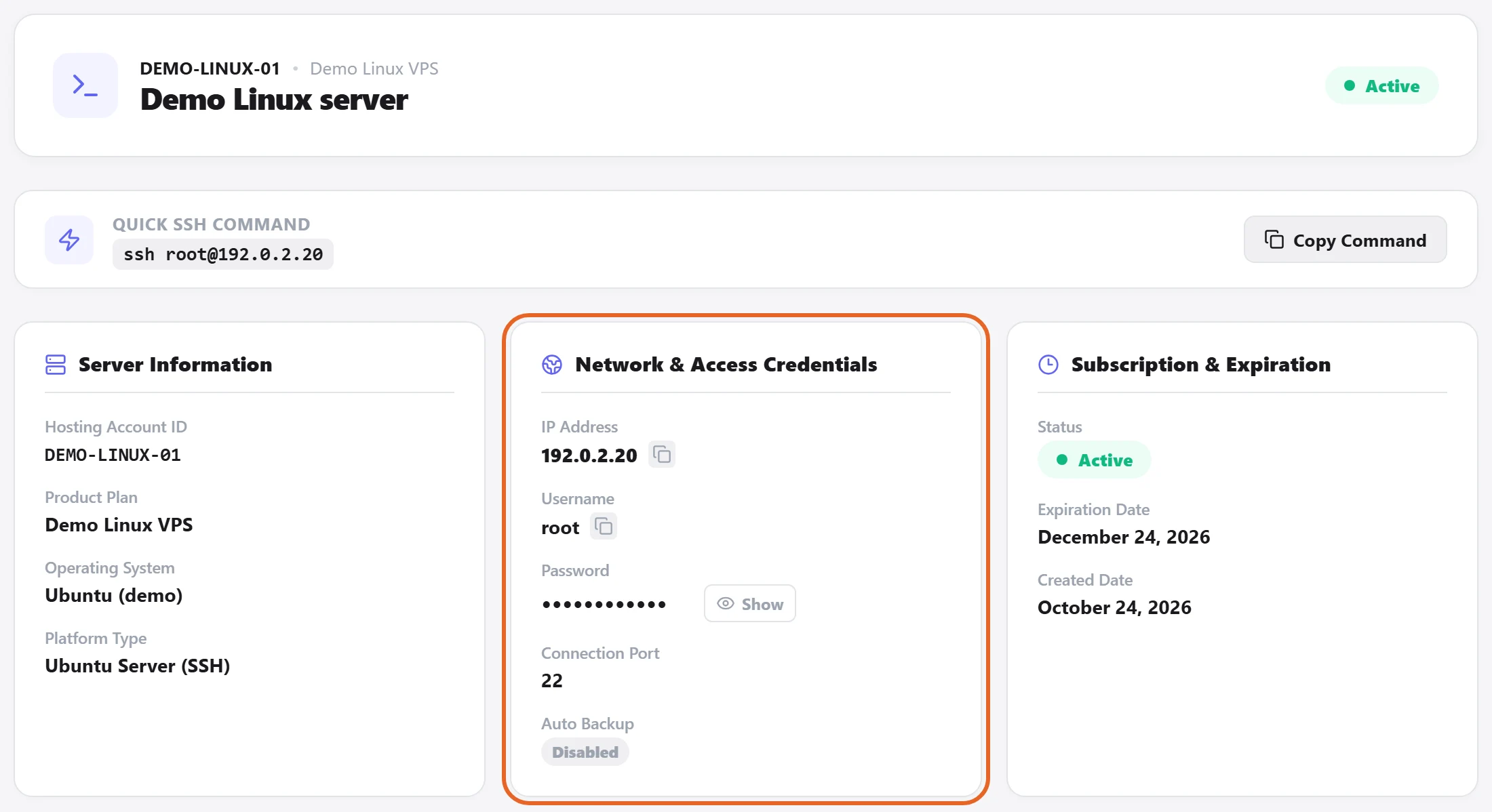
Figure 1: For Windows, check the service identity, operating system and Network & Access Credentials before using your remote desktop client. The address and service details are fictional demo data; the password remains masked. 查看原图 - Linux VPS 使用 SSH 客户端,按服务显示的连接信息连接。首次连接时核对服务器身份,不能对所有主机警告一律忽略。
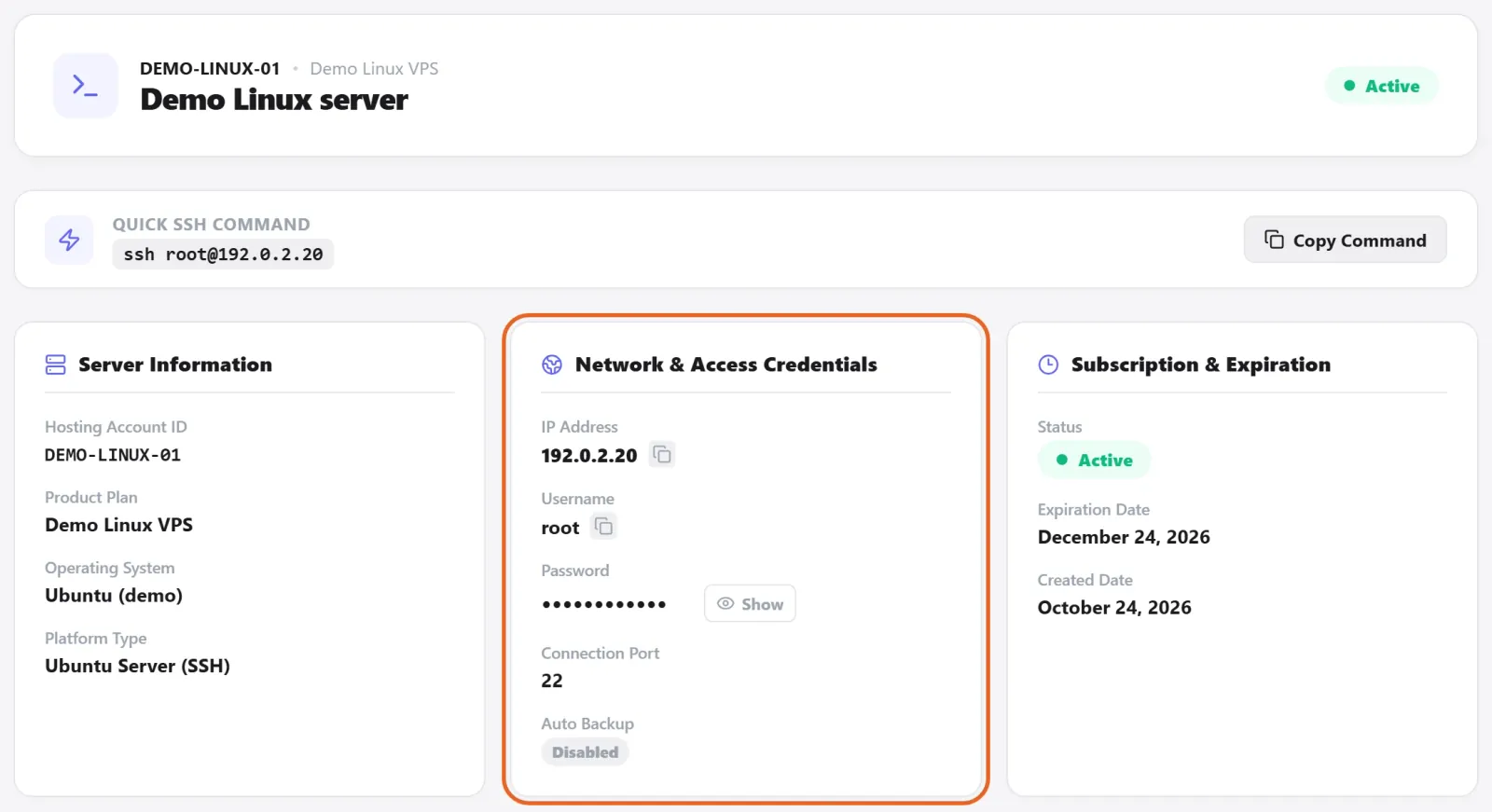
Figure 2: For Linux, use the supplied SSH destination, username and port, and verify the server identity on first connection. Demo service shown; no password retrieved or remote connection made. 查看原图 - 登录后确认系统与服务匹配。涉及防火墙、远程访问或网络配置前保留可恢复的连接方案。
确认完成
- 应看到正确的远程系统,并能完成必要的基本操作;连接成功不代表你的业务应用已经部署。
遇到问题时
- 连接失败先核对服务状态、地址、端口和客户端网络;身份失败再检查账号凭据。
- 如果没有可用凭据或修改后失联,停止重复尝试,向支持提供服务编号、系统、时间与脱敏错误。