Create a domain mailbox and test delivery
Create a mailbox, configure the returned server settings and verify DNS and delivery.
Applies toFor plans and domains with mail enabled. Use the mailbox and storage limits shown for your plan.
On this page
Before you start
- Confirm domain and DNS access and save the existing mail service records, including MX, SPF and DKIM.
- Plan historical-mail retention before moving an existing mailbox. An MX change alone does not migrate messages.
Follow these steps
- Open Mail in the hosting panel, select the relevant domain and create the mailbox.
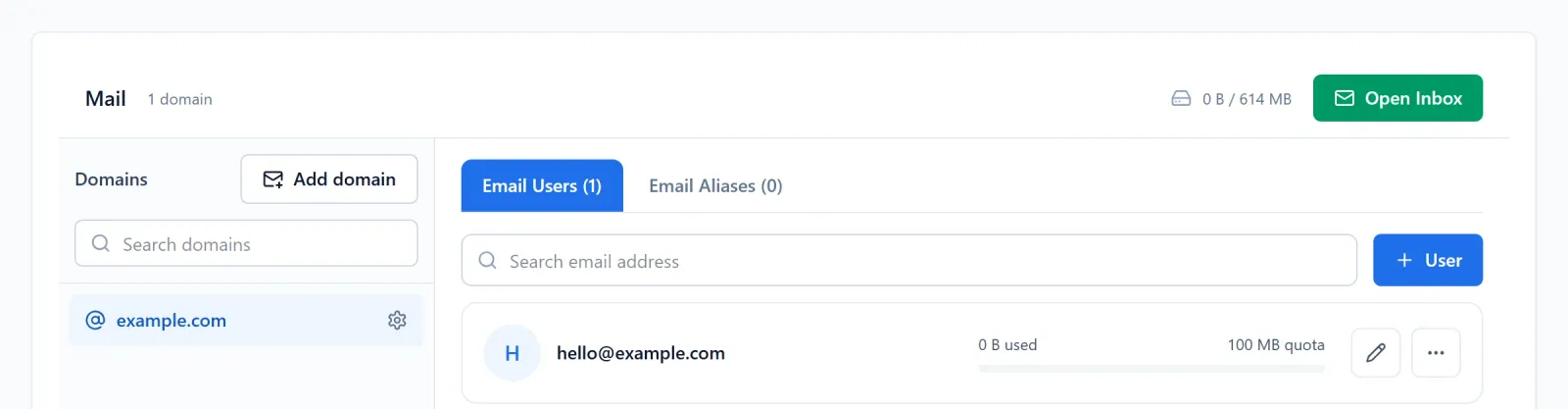
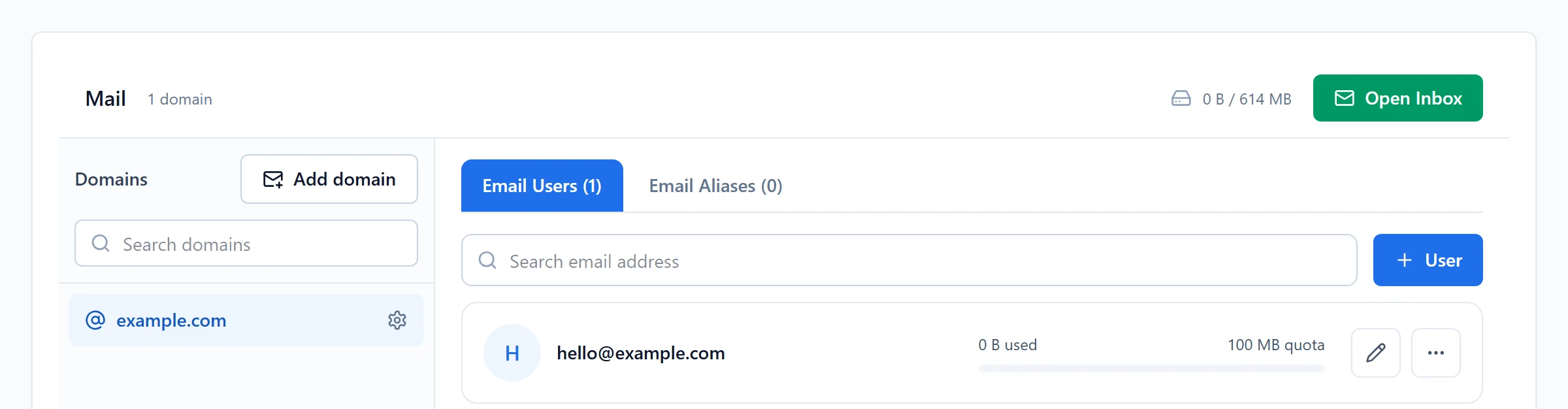
Figure 1: In Mail, select the relevant domain and open Email Users. The User button starts mailbox creation. Example domain and mailbox shown. View full-size image 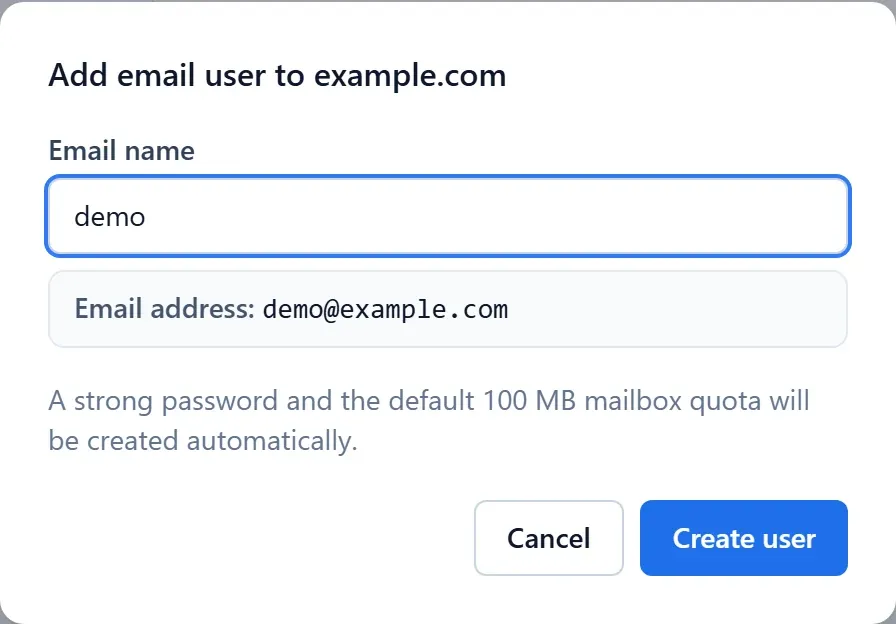
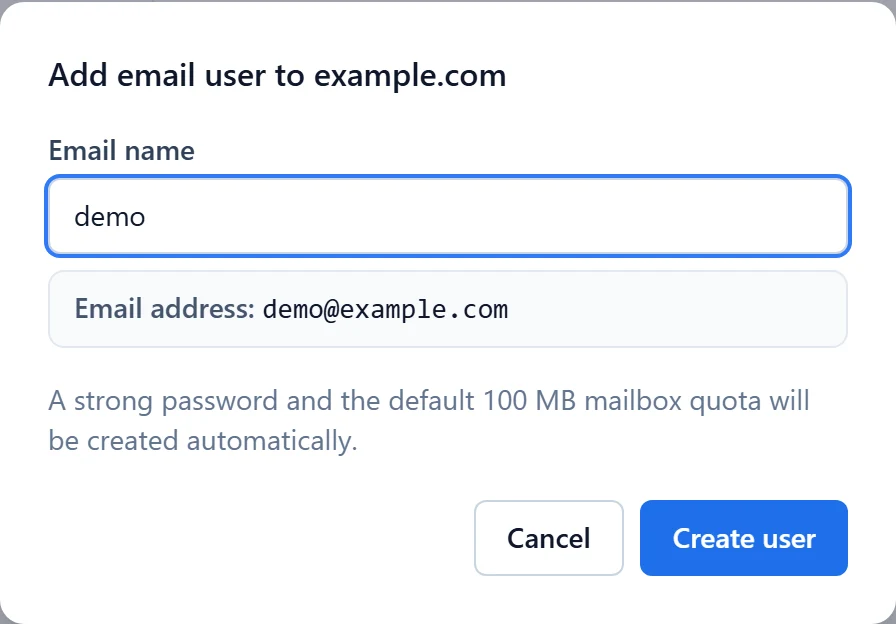
Figure 2: Check the mailbox name and full address before creating the user. This is an unsent demo form; use your own domain and the settings returned by your panel. View full-size image - Configure your client with the actual incoming and outgoing hosts, ports and encryption settings returned by the panel. Do not infer them from the website URL.
- Add the mail DNS records provided for the domain. Reconcile an existing SPF policy instead of adding conflicting policies.
Check the result
- Send to an external mailbox and reply from it. Inspect the inbox, spam folder and any bounce, retaining exact test times.
If something goes wrong
- For authentication failures, check the complete mailbox login and client protocol first. If login works, inspect MX, quota and bounces.
- Give support redacted bounce details and timestamps; do not include the mailbox password in ticket text.