Check invoices, payments and renewal settings
Verify the product, billing period and service state before paying or renewing.
Applies toFor customer-centre billing. Current checkout determines prices, periods and available methods.
On this page
Before you start
- Have the order or invoice reference ready and identify the product being purchased.
- Account balance and AI credits serve different purposes. A balance top-up is not itself a product purchase.
Follow these steps
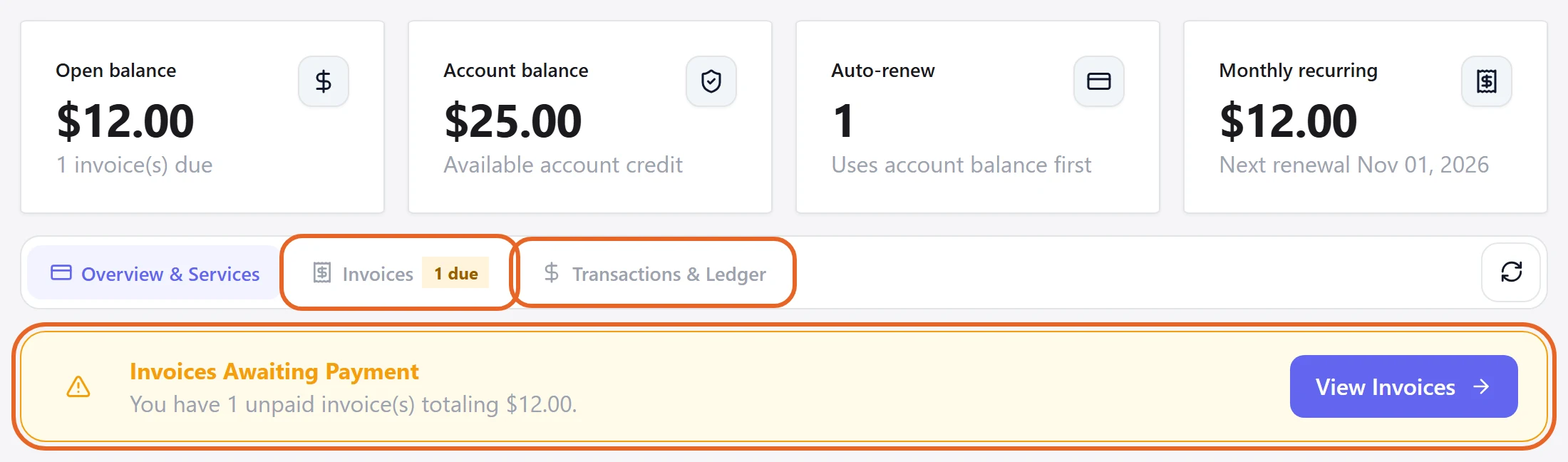
- Open Billing to inspect outstanding invoices, history and balance transactions.
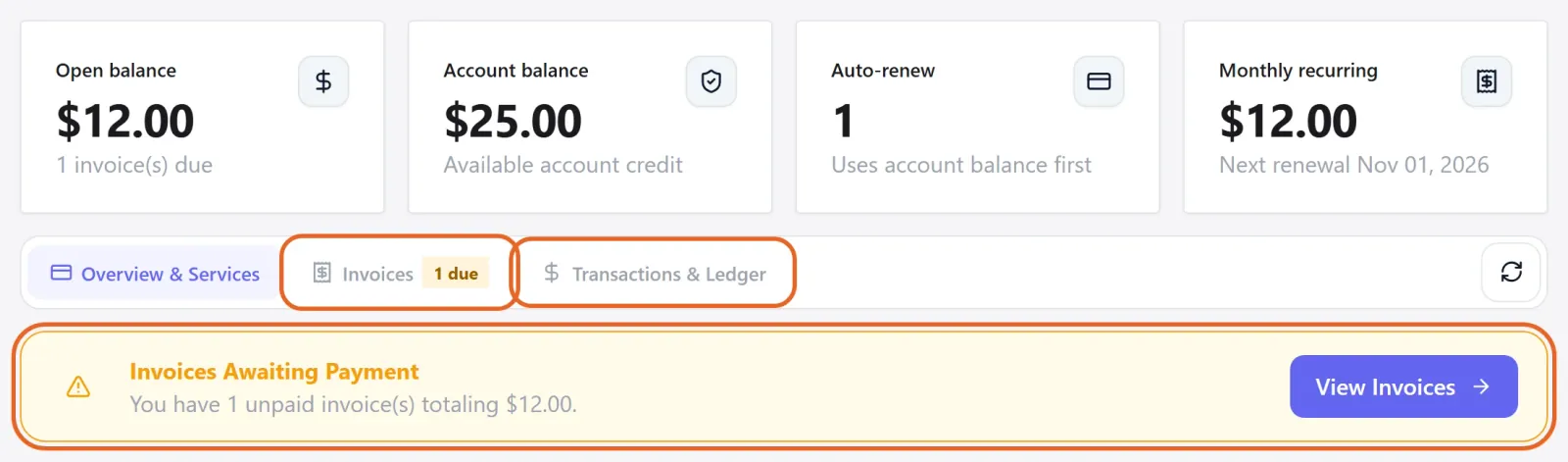
Figure 1: Open Invoices for outstanding invoices and history, or Transactions & Ledger for balance activity. Demo data only. View full-size image - Before payment, check the product, amount, period and currency. Afterwards, confirm the invoice state and then the service state.
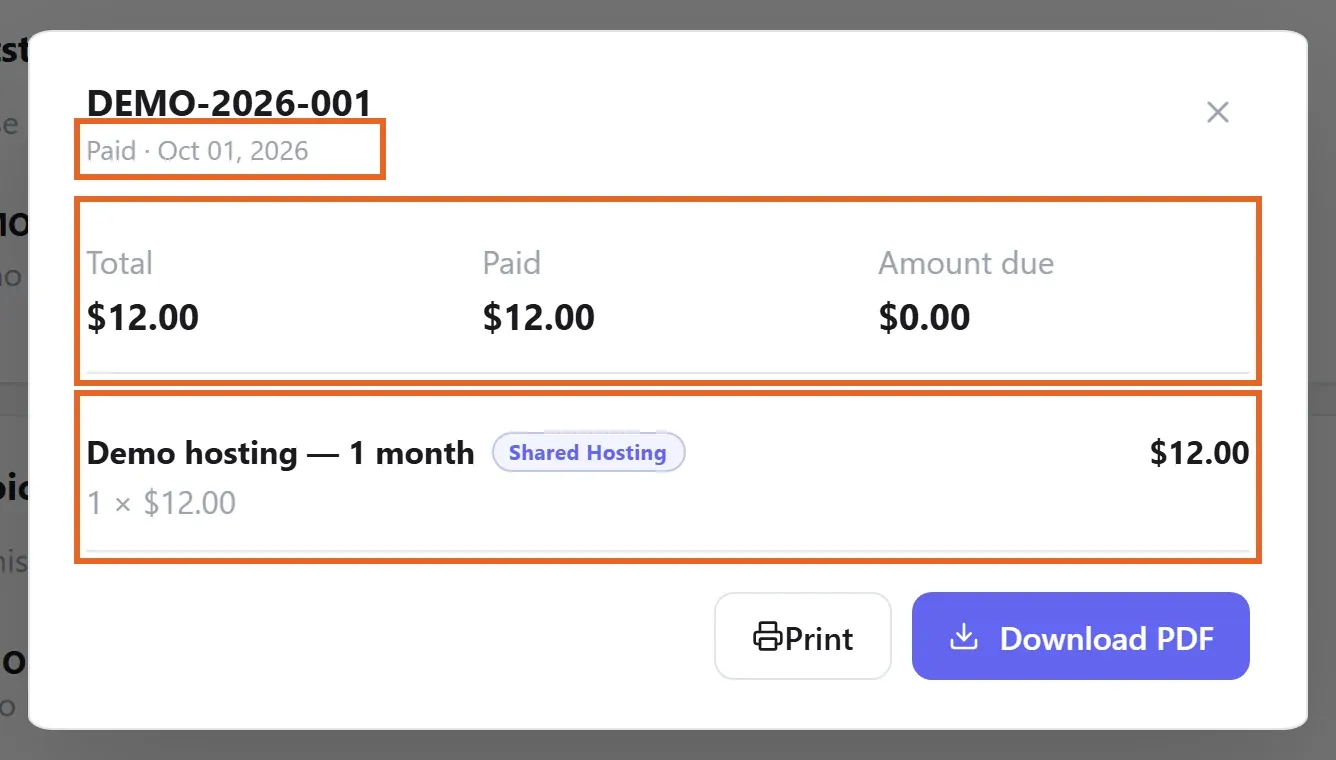
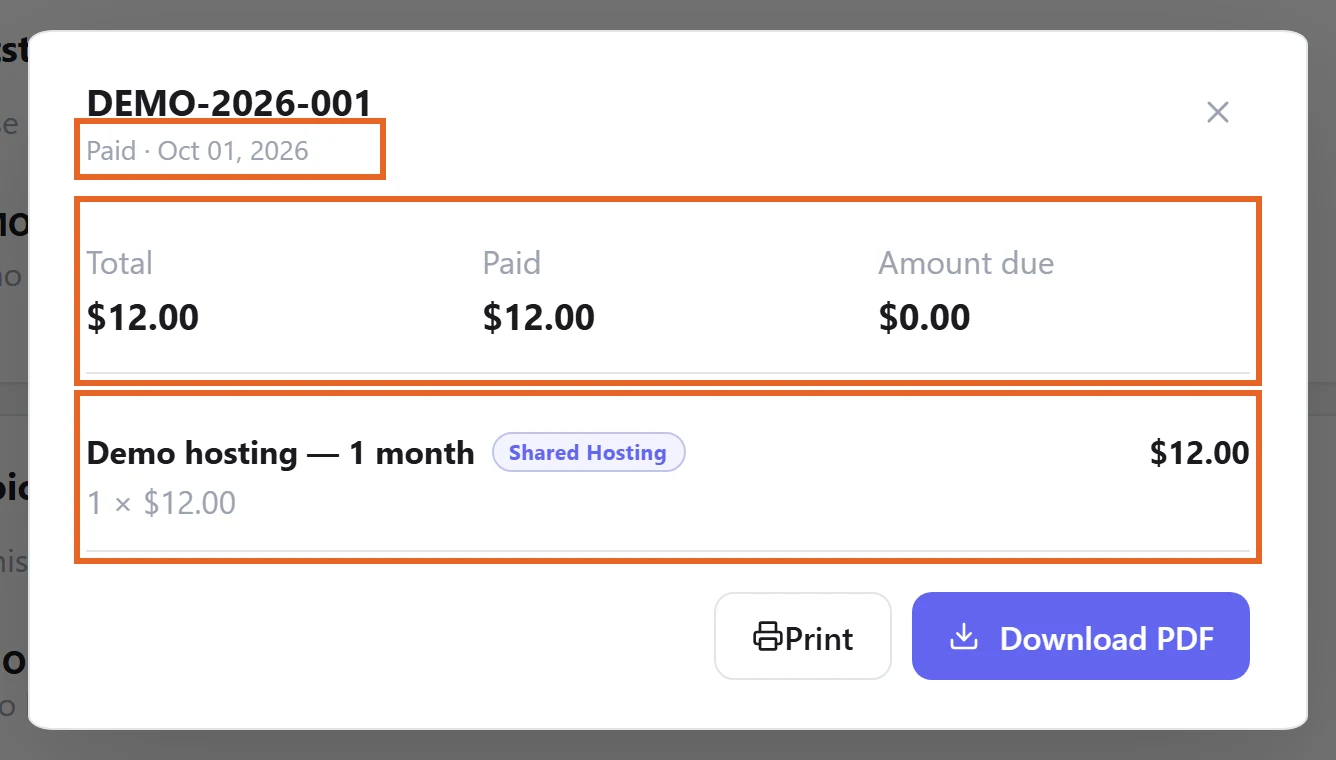
Figure 2: Open an invoice in Invoices to check the product and amounts. This example shows Paid with zero Amount due. Demo data only. View full-size image - Review the renewal choice and next due date in the relevant service settings rather than relying only on an email or bank transaction.
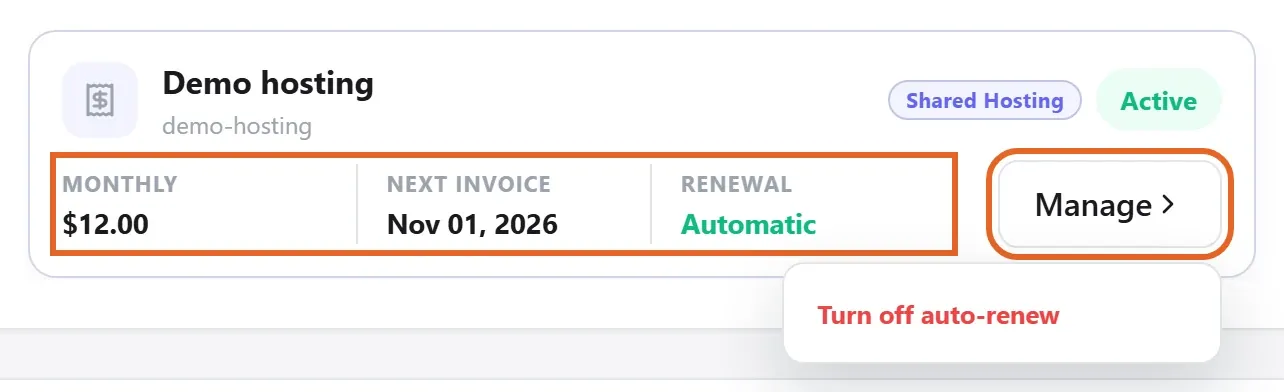
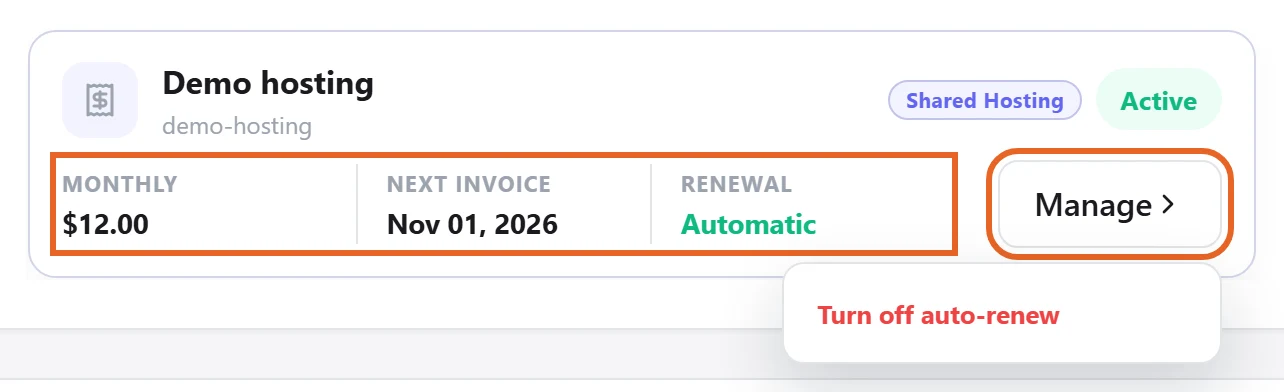
Figure 3: In Overview & Services, check Next invoice and Renewal. Manage opens the renewal options. Demo data only. View full-size image
Check the result
- The invoice should reflect the payment result. Provisioning or manually delivered products also require their service or delivery confirmation.
If something goes wrong
- If money was deducted but an invoice remains open, send support the invoice reference, time and a redacted receipt before paying again.
- Ask support about the specific order before assuming cancellation, refund, period-change or balance rules.